Follow these steps once, and you’ll be ready to chat.
Quick Start (One-Time Setup)
Open the chat page
Visit chat.easyrouterai.com, or click the 🤖 AI Chat button on the main website.Sign up or log in
- If you already have an account, enter your credentials and log in.
- If you’re new, click Sign up and create an account. You only need to register once.
Get your API key from EasyRouterAI
Open easyrouterai.com in another tab, log in, and generate an API key if you haven’t already. You’ll need this key in the next step.Open Open WebUI settings
- In Open WebUI, click your profile picture in the lower-left corner.
- From the menu, click Settings.
- In the left sidebar, click Connections.
- You will see Manage Direct Connections. Click the Add button (or plus icon).
Fill in your API connection
In the connection form, enter:- API Base URL:
https://easyrouterai.com/v1 - API Key: your EasyRouterAI API key (format:
sk-xxxxxxxx)
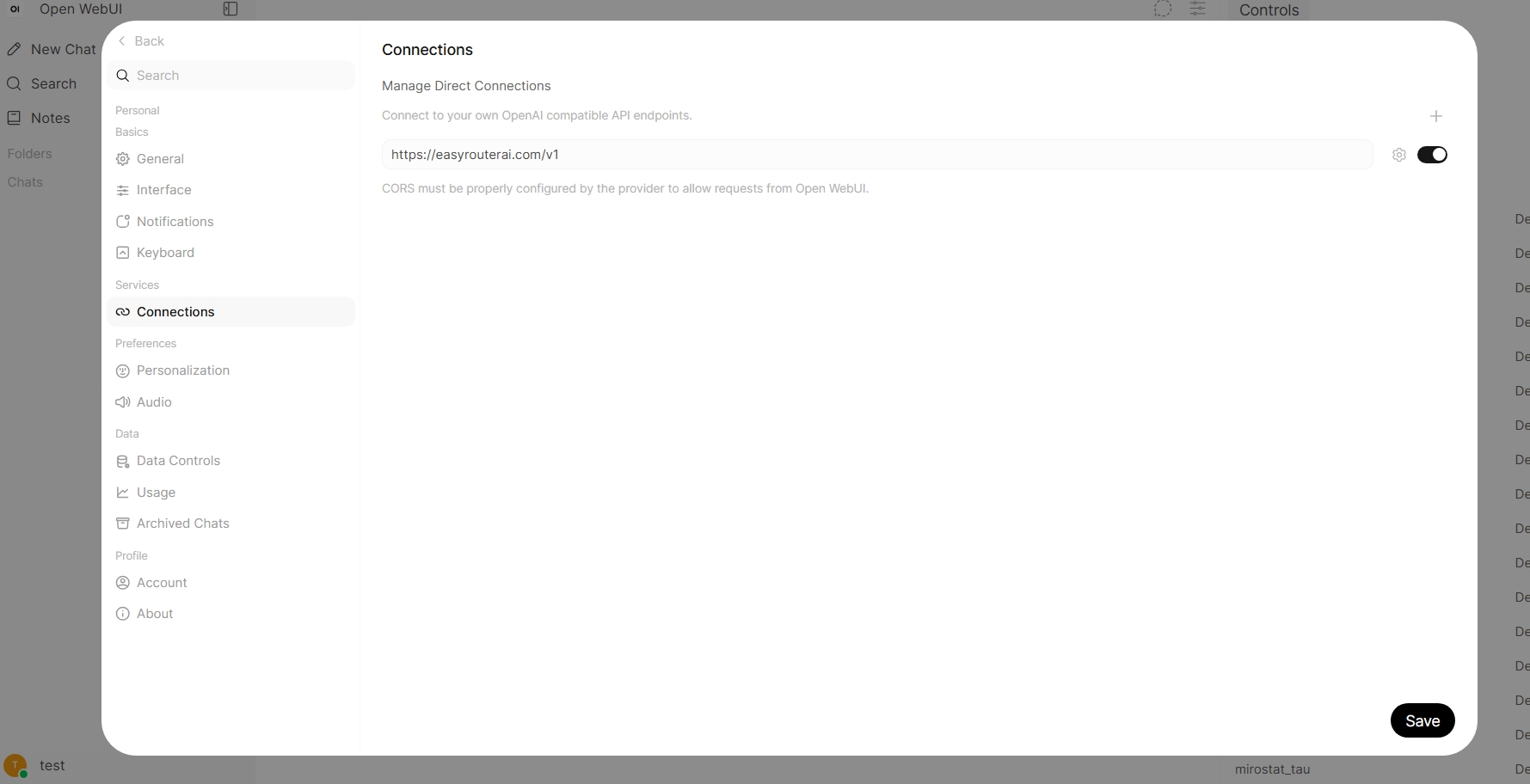
- API Base URL:
Save and start chatting
Save the connection. Then return to the chat screen, select a model such asDeepSeek V4 FlashorGLM 5.2, and start asking questions.
FAQ
I don’t see the model list?
Make sure you entered the correct API Base URL and API Key, then refresh or reconnect.The model doesn’t respond?
Check that your API key has sufficient balance and the selected model is available.Do I need to set this up every time?
No. Once saved, your connection settings are stored in your Open WebUI account. You can log in on any device and start chatting immediately.Can I use my own API key?
Yes. Using your own key ensures that token usage is recorded under your EasyRouterAI account.